

Eclipse Tips: Outline view
Continuing the Eclipse series, the tool covered in this post is a sworn enemy of many and an essential element for some (me, for example): the Outline View.
As with Breadcrumbs, the Outline View too is there to help you move easily through the byzantine maze of classes you have put together with so much loving and ingenious effort. Unlike Breadcrumbs, however, which let you travel through the entire project, the Outline View takes care of organizing, in a tree view, all the components of just the class you are working on.
If it is not already visible (or if you closed it with a gesture of contempt the last time you saw one), let's show it by choosing Window > Show View > Outline from the menu, or by using the very handy shortcut Shift-Ctrl-Q O.
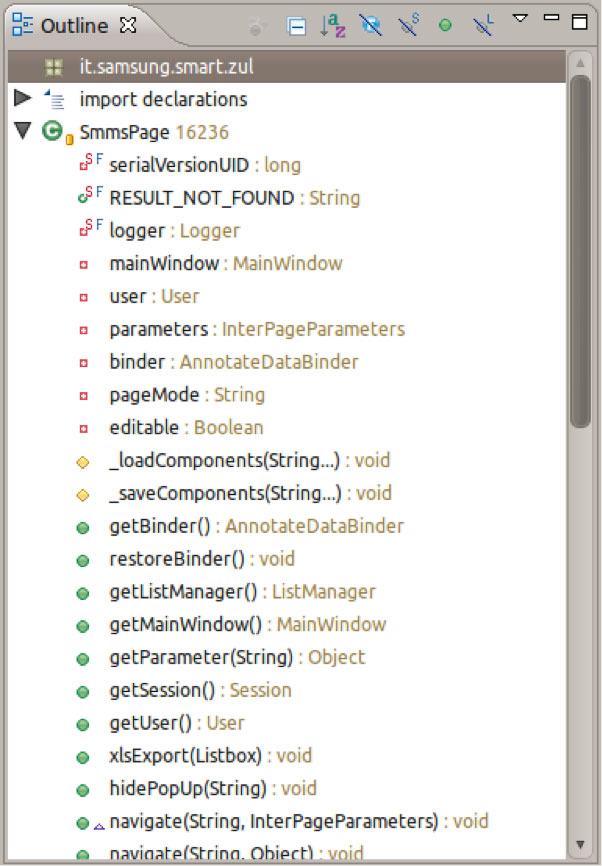
The view that appears in front of us should look more or less like the screenshot, a nice little tree with all the elements of the class you have open in the editor. The signature of each member is represented by icons and decorators, while the type (or the return type for methods) is shown on the right. Clicking on an element makes the editor “jump” to that point in the file.
The icons at the top of the view, on the other hand, let you change how the element tree is displayed. It is very useful, for example, to sort fields and methods alphabetically or to use a combination of the 3 “crossed-out” icons to show only public or non-static members. Still on the bar at the top of the view, clicking on the little wedge-shaped arrow (third from the right, in the screenshot) you can further limit the visibility of elements by hiding package declarations, imports and synthetic members (Filters…) or un/link the view from the editor (Link with editor). This last option is particularly useful if, for example, you want to explore the outline view without making the editor “jump” from one part of the file to another.
The Outline View probably won't save your life, but I still think it is worth trying. Just sorting members alphabetically and hiding the parts that are not important at the moment helps you “navigate” even very complex classes quickly. The alternatives are the trusty CTRL-F (which however assumes you know what you are looking for) or the maximized editor and hours of scrolling the poor mouse wheel in Search of the Lost Method.