

Maven Eclipse Integration
Having completed our first approach to Apache Maven, let's now see how to integrate it into one of the most widely used IDEs, ECLIPSE.
The first thing to do is to install m2e, a Maven plugin for Eclipse.
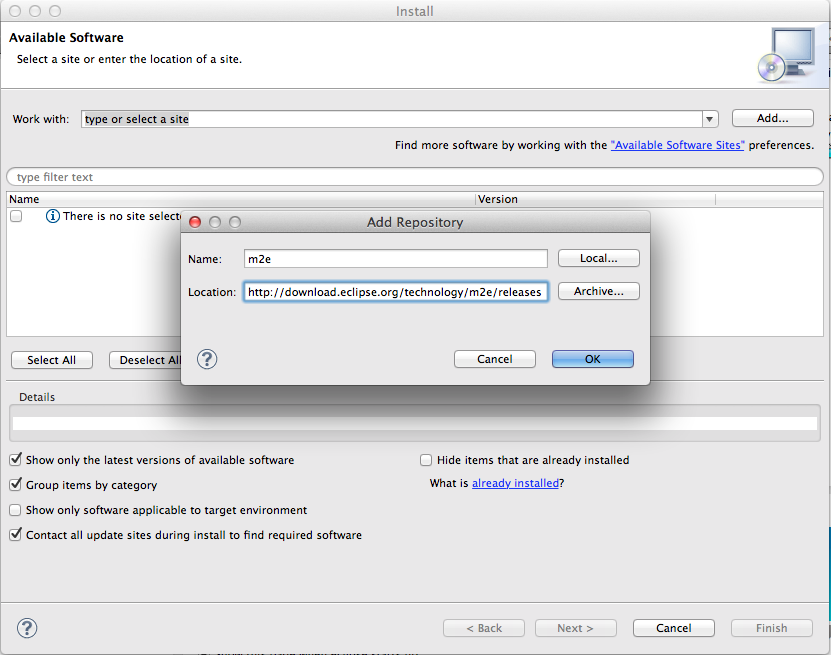
Using Eclipse version 3.7, go to Help -> Install new software -> add and add the following url:
http://download.eclipse.org/technology/m2e/releases
Select Maven Integration for Eclipse and then Next.
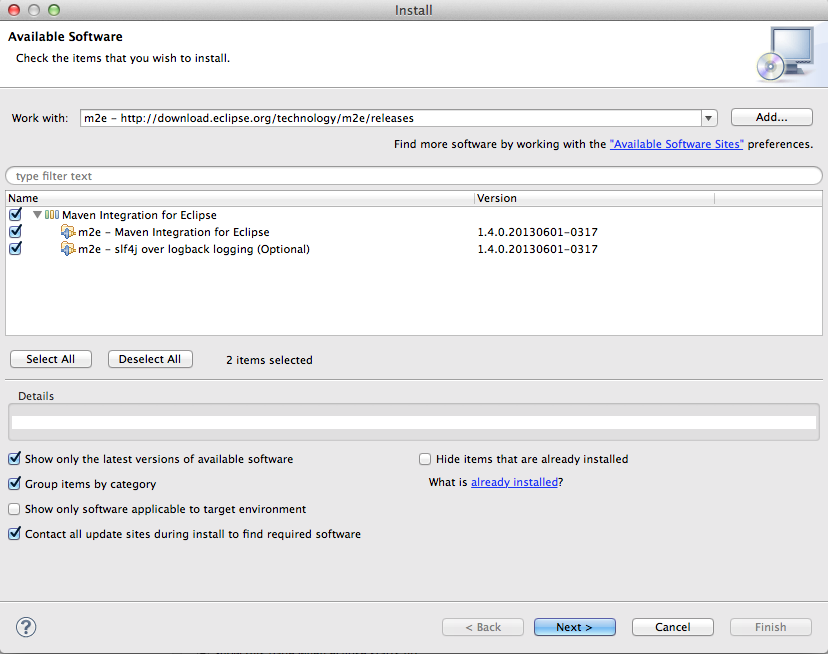
The detail screen will open; click Next again and, after accepting the license terms, click Finish.
And there you have it: the Apache Maven plugin for Eclipse is installed.
Now, after restarting Eclipse, let's proceed with creating the first project in Maven.
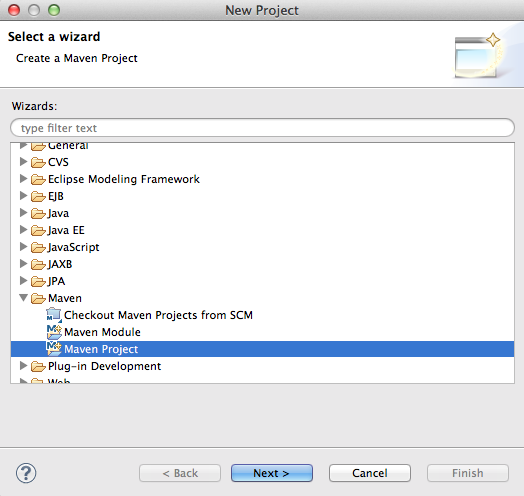
Go to File -> New -> Project and select Maven -> Maven Project in the wizard.
Create a simple project by ticking the Create simple project checkbox and click Next.
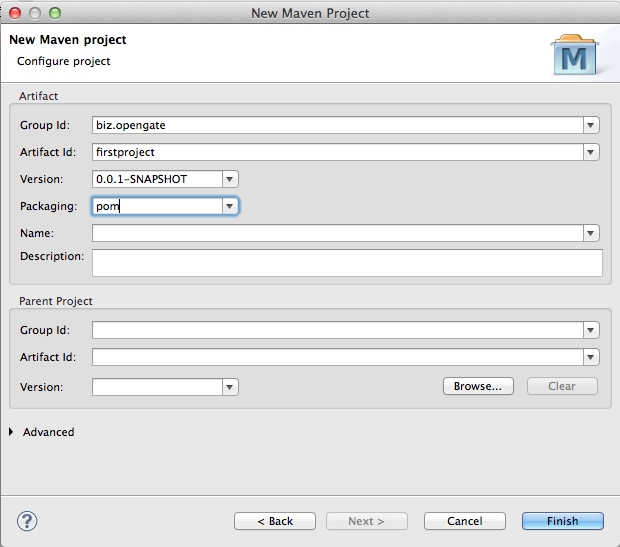
Now enter the Group Id (e.g. "biz.opengate"), the Artifact Id (e.g. "firstproject"), the Packaging POM (it will be the parent project of the future modules) and click Finish.
We already said in the previous article that Apache Maven allows us to manage projects in a modular way and so, now, let's create a new module (which will have the project just created as its parent).
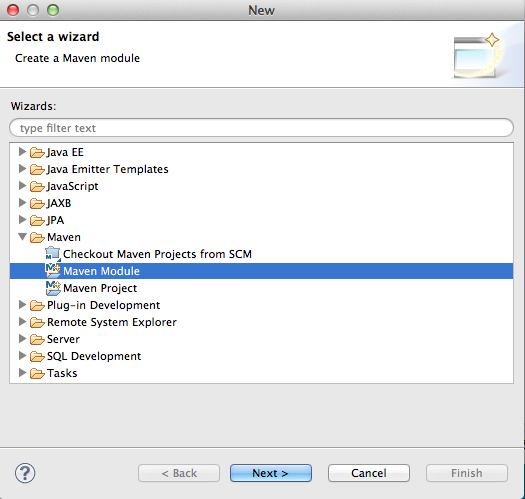
Select File -> New -> Project. From the wizard choose Maven -> Maven module.
Set Module Name to "firstmodule" and as Parent Project the project created previously.
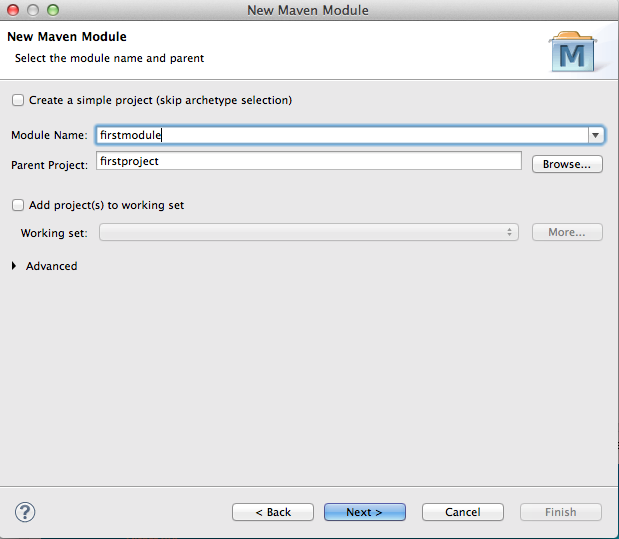
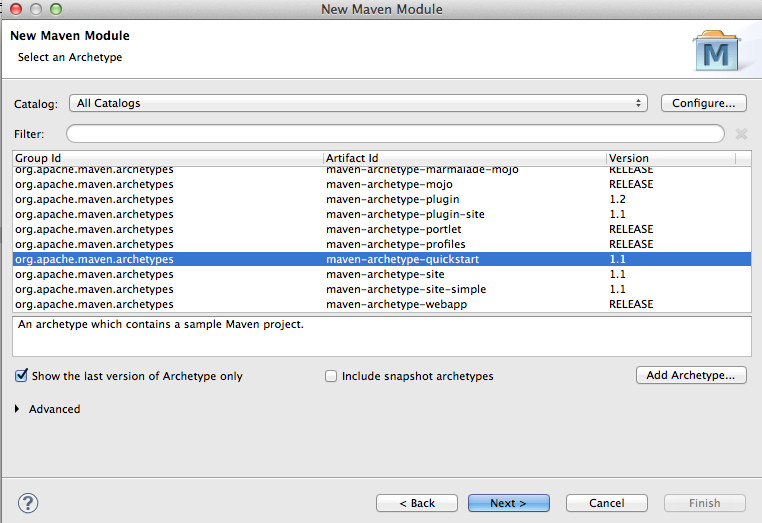
Click Next and then select from the maven module catalog org.apache.maven.archetypes - maven-archetype-quickstart and Next.
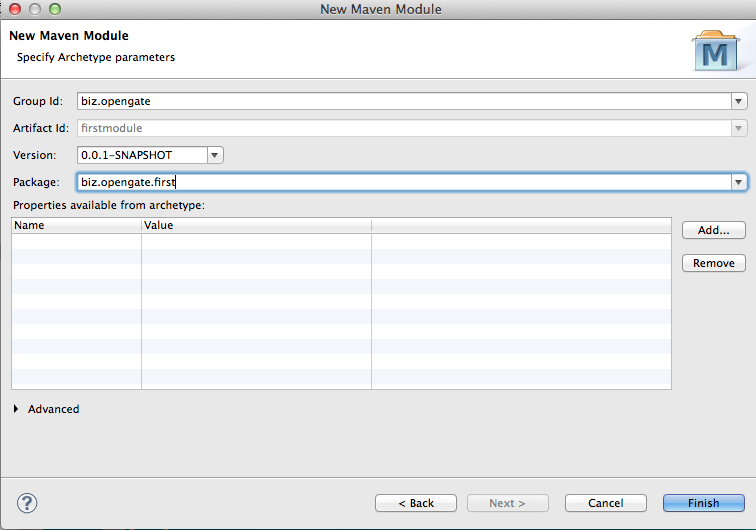
Next, specify the Group Id, the Artifact Id, the Package and click Finish.
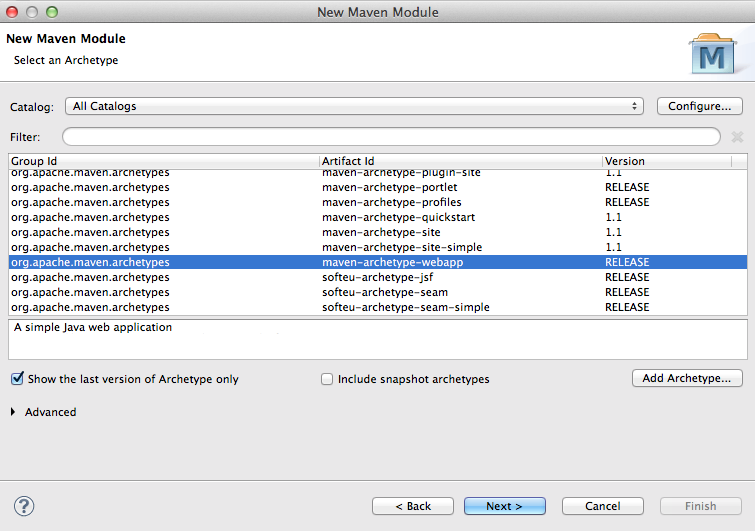
Now let's create the web module following the procedure just seen, but setting Module Name to "firstmoduleweb" and, on the next screen, "maven-archetype-webapp".
Once the Group Id, the Artifact Id and the Package have been set, click Finish.
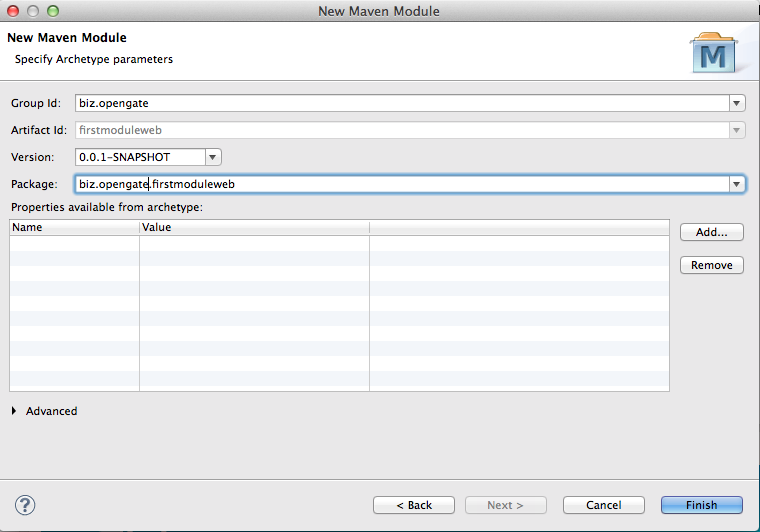
And here is our first modular project created with Apache Maven.
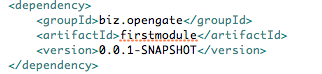
At this point let's add the "firstmodule" module as a dependency of the "firstmoduleweb" webapp by inserting the following block of code in the pom.xml file of "firstmoduleweb":
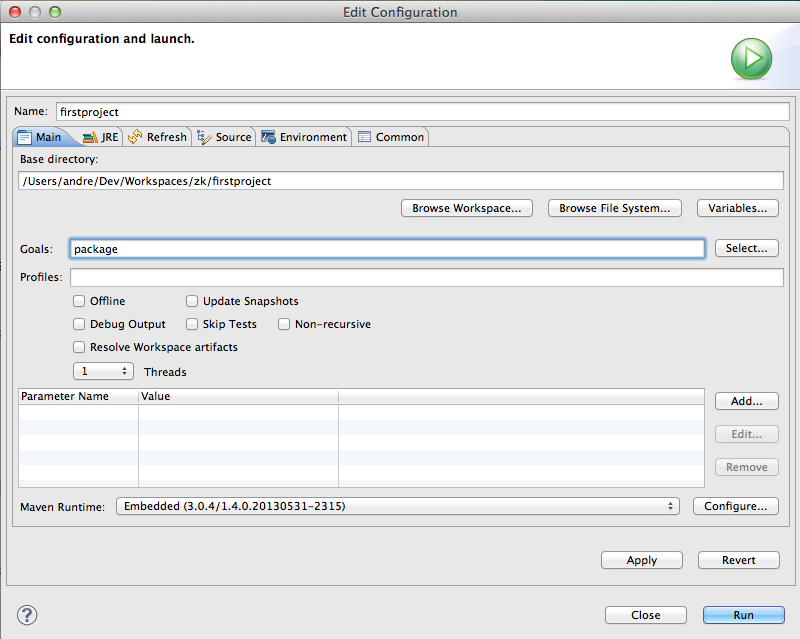
Let's now move on to compiling the code. Right-click on the parent project "firstproject", then on Run as -> Maven build... . Type "package" in the Goals field and click Run.
At the end of the build, in the target folder of the web project "firstmoduleweb" we will find the WAR file.